How to Remove Tax From a Receipt and Find the Pre-Tax Amount
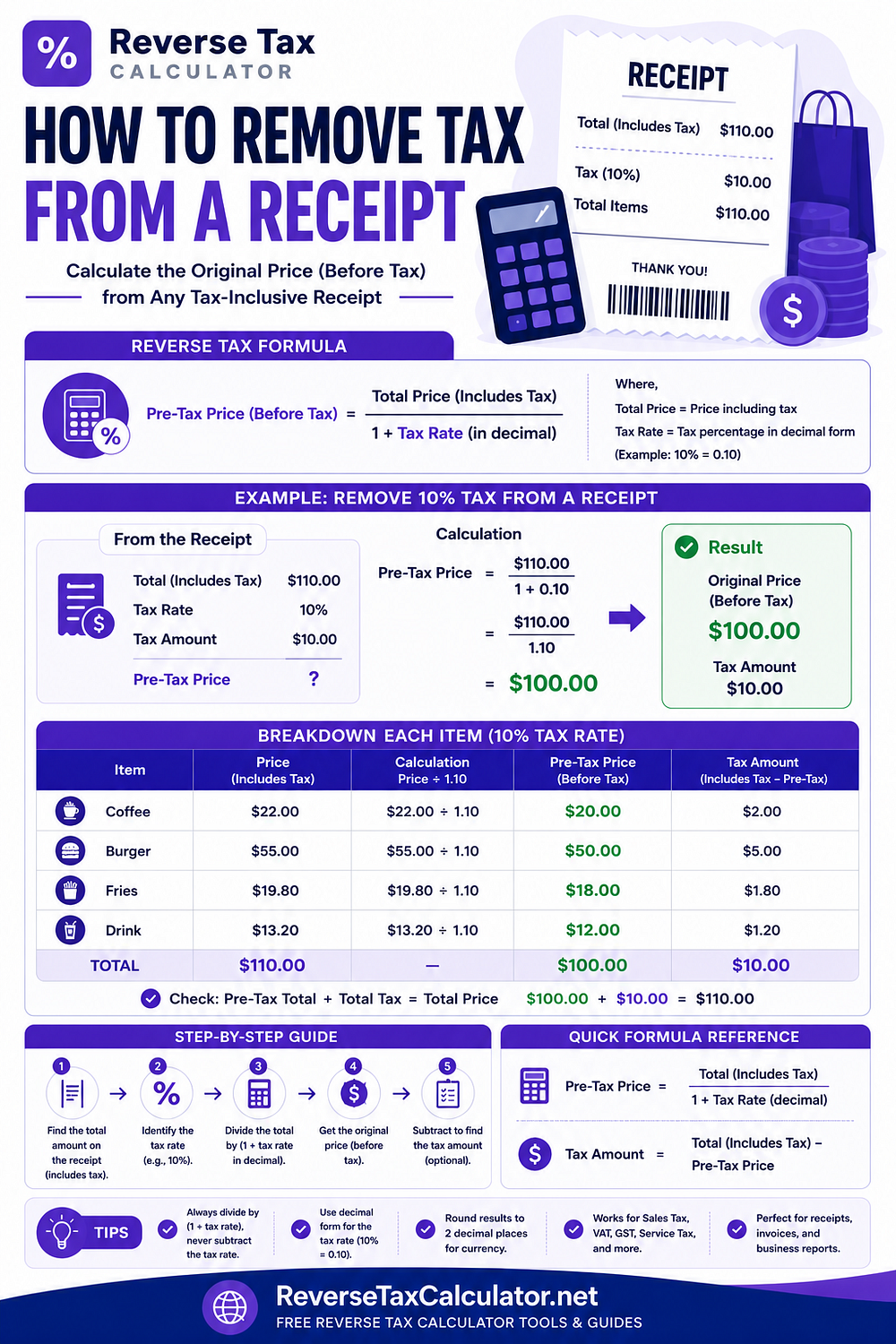
A receipt may show a final amount without clearly separating the original price and the tax included in it.
When the receipt total already includes tax, you can work backward to calculate:
The amount before tax
The tax included in the receipt
Whether the receipt agrees with the stated tax rate
The basic reverse-tax formula is:
Pre-tax amount = Tax-inclusive receipt amount ÷ (1 + Tax rate ÷ 100)
Then calculate the included tax:
Included tax = Tax-inclusive receipt amount - Pre-tax amount
For example, if a receipt amount of 108.00 includes 8% tax:
108.00 ÷ 1.08 = 100.00
The included tax is:
108.00 - 100.00 = 8.00
However, real receipts often contain more than one taxable product and one tax line. Discounts, exempt products, shipping, tips, gift cards, credits, and multiple rates can change which number should be entered.
For more receipt examples and troubleshooting guidance, read the complete guide to removing tax from a receipt.
What Does Removing Tax From a Receipt Mean?
Removing tax from a receipt means separating a tax-inclusive amount into:
The original taxable amount before tax
The tax contained in the final amount
It does not mean deleting, cancelling, or claiming a refund for the tax.
It is an arithmetic breakdown that may be useful for:
Expense records
Reimbursement claims
Receipt verification
Bookkeeping
Refund checks
Business records
Price comparisons
Tax-inclusive purchases
For a clean single-rate receipt:
Pre-tax amount + Included tax = Tax-inclusive amount
Which Receipt Number Should You Use?
Use the amount that actually contains the tax you want to remove.
Do not automatically use:
The largest number
The bottom line
The amount charged to a card
The balance due
The grand total
Those figures may contain items or adjustments that do not share the same tax treatment.
Common receipt labels
| Receipt label | Usually suitable for reverse tax? | Reason |
|---|---|---|
| Subtotal | Usually no | Often already before tax |
| Taxable subtotal | Usually no | Commonly the base before tax |
| Tax | No | Already shows the tax amount |
| Total | Sometimes | Use only when it is tax-inclusive |
| Grand total | Sometimes | Check tips, fees, and other additions |
| Amount paid | Be careful | May reflect gift cards, credits, or tips |
| Balance due | Usually no | May be reduced by a deposit or payment |
| Tax-inclusive item group | Yes | Suitable when one rate applies |
The correct input is the tax-inclusive taxable amount, not necessarily the complete payment amount.
Step 1: Read the Receipt Before Calculating
Identify every important line on the receipt.
Look for:
Product or service lines
Item subtotal
Discount
Taxable subtotal
Exempt items
Tax rate
Tax amount
Shipping
Delivery fee
Service charge
Tip
Total
Gift card
Store credit
Deposit
Amount paid
Balance due
The sequence of the lines often reveals how the receipt was calculated.
Step 2: Confirm That the Amount Includes Tax
Reverse tax is needed only when the starting amount already contains tax.
Suitable wording may include:
Tax included
VAT included
GST inclusive
Total including tax
Gross amount
Tax-inclusive amount
Final price after tax
Do not reverse a subtotal that is already before tax.
Suppose a receipt shows:
| Line | Amount |
|---|---|
| Subtotal | 100.00 |
| Tax | 8.00 |
| Total | 108.00 |
The subtotal of 100.00 is already before tax.
Entering 100.00 into a reverse calculator at 8% would incorrectly reduce it to approximately 92.59.
The correct tax-inclusive amount is 108.00.
Step 3: Identify the Correct Tax Rate
Use the rate printed on the receipt when available.
The rate must match:
The transaction location
The transaction date
The relevant product or service
The taxable receipt group
Any state, provincial, or local components
Do not assume that every product on the receipt uses the standard rate.
A receipt may contain:
Standard-rate products
Reduced-rate products
Zero-rated products
Exempt products
Separate local taxes
Different rates for different services
When several rates apply, separate the receipt into groups.
Step 4: Remove Non-Taxable and Unrelated Amounts
Before using the formula, separate amounts that did not contain the selected tax.
These may include:
Exempt products
Optional tips
Non-taxable shipping
Gift-card redemptions
Store credits
Deposits
Previous payments
Refund credits
Differently taxed fees
Suppose a receipt shows:
Taxable products including 8% tax: 108.00
Exempt product: 50.00
Complete receipt total: 158.00
Do not reverse the complete 158.00 at 8%.
Reverse only the taxable portion:
108.00 ÷ 1.08 = 100.00
Included tax:
108.00 - 100.00 = 8.00
The receipt contains:
| Component | Amount |
|---|---|
| Taxable amount before tax | 100.00 |
| Included tax | 8.00 |
| Exempt product | 50.00 |
| Receipt total | 158.00 |
Step 5: Create the Tax Multiplier
Convert the percentage rate into decimal form and add 1.
| Tax rate | Decimal | Multiplier |
|---|---|---|
| 5% | 0.05 | 1.05 |
| 7% | 0.07 | 1.07 |
| 8% | 0.08 | 1.08 |
| 10% | 0.10 | 1.10 |
| 13% | 0.13 | 1.13 |
| 20% | 0.20 | 1.20 |
For an 8% rate:
1 + 0.08 = 1.08
For a 20% rate:
1 + 0.20 = 1.20
Step 6: Divide by the Multiplier
Use:
Pre-tax amount = Tax-inclusive receipt amount ÷ Multiplier
Suppose:
Tax-inclusive amount: 216.00
Rate: 8%
Multiplier: 1.08
Calculation:
216.00 ÷ 1.08 = 200.00
The pre-tax amount is 200.00.
Step 7: Subtract to Find the Included Tax
Use:
Included tax = Receipt amount - Pre-tax amount
Using the previous example:
216.00 - 200.00 = 16.00
The complete breakdown is:
Pre-tax amount: 200.00
Included tax: 16.00
Receipt amount: 216.00
Step 8: Rebuild the Receipt Amount
Verify the result by adding the parts:
200.00 + 16.00 = 216.00
You can also calculate the tax forward:
200.00 × 8% = 16.00
If the result does not match the receipt, check:
Whether the correct rate was used
Whether part of the total was exempt
Whether a tip was included
Whether shipping was taxable
Whether several rates applied
Whether the receipt rounded each line separately
Whether the starting number was an amount paid rather than the sale total
Simple Receipt Example
Suppose a receipt shows:
Tax-inclusive products: 108.00
Tax rate: 8%
Calculate the pre-tax amount:
108.00 ÷ 1.08 = 100.00
Calculate the included tax:
108.00 - 100.00 = 8.00
Result:
Price before tax: 100.00
Included tax: 8.00
Tax-inclusive amount: 108.00
Receipt With Subtotal, Tax, and Total
Suppose the receipt already shows:
| Line | Amount |
|---|---|
| Subtotal | 100.00 |
| Tax | 8.00 |
| Total | 108.00 |
Reverse tax may not be necessary because the breakdown is already visible.
Verify the tax:
108.00 - 100.00 = 8.00
Verify the implied rate:
8.00 ÷ 100.00 × 100 = 8%
The receipt is mathematically consistent.
Receipt With Only Total and Tax Amount
Suppose the receipt shows:
Total: 108.00
Tax: 8.00
No subtotal
Subtract the shown tax:
108.00 - 8.00 = 100.00
The pre-tax amount is 100.00.
The implied rate is:
8.00 ÷ 100.00 × 100 = 8%
Using the receipt’s actual tax line is normally stronger than guessing a tax rate.
It also preserves the receipt’s own rounding result.
Receipt With a Discount Before Tax
Suppose:
Original item price: 120.00
Discount: 20.00
Discounted taxable amount: 100.00
Tax rate: 8%
Final tax-inclusive amount: 108.00
Reverse the final amount:
108.00 ÷ 1.08 = 100.00
The reverse-tax result is 100.00.
It does not recover the original 120.00 shelf price because tax was calculated after the discount.
The transaction contains:
Original price: 120.00
Discount: 20.00
Taxable amount after discount: 100.00
Tax: 8.00
Final amount: 108.00
Receipt With a Discount After Tax
Some credits or reimbursements may be applied after the original tax calculation.
Suppose:
Original tax-inclusive sale: 108.00
Store credit applied: 20.00
Remaining payment: 88.00
The 88.00 payment is not necessarily a new tax-inclusive selling price.
The original sale should be analyzed using 108.00:
108.00 ÷ 1.08 = 100.00
The store credit changes how the sale is paid, not necessarily the original taxable base.
Receipt With an Optional Tip
Suppose a restaurant receipt shows:
Food and tax: 108.00
Optional tip: 20.00
Amount paid: 128.00
Tax rate on food: 8%
Do not automatically reverse 128.00 at 8%.
The tip may not contain the same tax.
Reverse the food and tax amount:
108.00 ÷ 1.08 = 100.00
Receipt breakdown:
Food before tax: 100.00
Tax: 8.00
Tip: 20.00
Amount paid: 128.00
The amount paid and the tax-inclusive taxable amount are different.
Receipt With a Service Charge
A mandatory service charge may have different tax treatment from an optional tip.
Before calculating, determine whether the charge:
Was included in the taxable subtotal
Was taxed at the same rate
Was taxed at a different rate
Was added after tax
Was exempt
Do not remove tax from the entire receipt until the service charge has been classified.
Receipt With Shipping
Shipping may be:
Taxable at the product rate
Taxable at a different rate
Non-taxable
Included in the taxable subtotal
Added after tax
Taxable shipping example
| Line | Amount |
|---|---|
| Products | 100.00 |
| Taxable shipping | 10.00 |
| Taxable subtotal | 110.00 |
| Tax at 8% | 8.80 |
| Total | 118.80 |
The tax-inclusive taxable amount is 118.80.
Reverse calculation:
118.80 ÷ 1.08 = 110.00
Non-taxable shipping example
| Line | Amount |
|---|---|
| Taxable products | 100.00 |
| Tax | 8.00 |
| Non-taxable shipping | 10.00 |
| Total | 118.00 |
Reverse only 108.00:
108.00 ÷ 1.08 = 100.00
Do not reverse the non-taxable shipping amount.
Receipt With Multiple Tax Lines on the Same Base
Suppose a receipt shows:
| Line | Amount |
|---|---|
| Taxable subtotal | 100.00 |
| State tax | 6.00 |
| Local tax | 2.00 |
| Total | 108.00 |
Both tax lines apply to the same 100.00 base.
The combined tax is:
6.00 + 2.00 = 8.00
The combined implied rate is:
8.00 ÷ 100.00 × 100 = 8%
If the receipt showed only the final tax-inclusive amount and combined rate, you could reverse 108.00 using 1.08.
Receipt With Different Tax Bases
Suppose a receipt contains:
Group A: 105.00 including 5% tax
Group B: 120.00 including 20% tax
Do not apply one combined rate to 225.00.
Reverse each group separately.
Group A:
105.00 ÷ 1.05 = 100.00
Tax:
105.00 - 100.00 = 5.00
Group B:
120.00 ÷ 1.20 = 100.00
Tax:
120.00 - 100.00 = 20.00
Combined result:
Pre-tax total: 200.00
Included tax: 25.00
Receipt total: 225.00
What If the Receipt Has No Tax Rate?
The method depends on what other information is visible.
| Information shown | What you can do |
|---|---|
| Subtotal and tax | Divide tax by subtotal |
| Total and tax | Subtract tax first, then find the rate |
| Location and item type | Verify the applicable rate |
| Total only | Not enough for a reliable calculation |
Subtotal and tax example
Suppose:
Subtotal: 200.00
Tax: 16.00
Implied rate:
16.00 ÷ 200.00 × 100 = 8%
Total and tax example
Suppose:
Total: 216.00
Tax: 16.00
Find the subtotal:
216.00 - 16.00 = 200.00
Find the implied rate:
16.00 ÷ 200.00 × 100 = 8%
Do not invent a rate merely because it produces a convenient result.
Why the Calculator May Differ by One Cent
A receipt may calculate tax at different levels.
Item-level rounding
Tax is calculated and rounded for every product.
Group-level rounding
Tax is calculated for each tax category.
Total-level rounding
Tax is calculated on the combined taxable subtotal.
Reverse-calculator rounding
The final total is divided once and rounded at the end.
These methods may produce a one-cent difference.
For example, a tax-inclusive amount of 100.00 at 7% gives:
100.00 ÷ 1.07 = 93.457943...
Rounded pre-tax amount:
93.46
Included tax:
100.00 - 93.46 = 6.54
A receipt that rounded several product lines separately might display a slightly different tax amount.
A one-cent difference does not automatically mean that either calculation is wrong.
Common Mistakes When Removing Tax From a Receipt
Using the final paid amount automatically
The payment may include tips or may be reduced by credits.
Reversing the subtotal
The subtotal may already be before tax.
Multiplying the total by the rate
This calculates tax from the wrong base.
Subtracting the percentage
This applies a discount instead of reversing tax.
Ignoring exempt items
Exempt products do not contain tax to remove.
Ignoring multiple rates
Different tax groups need separate calculations.
Using the wrong local rate
A receipt may use a combined regional rate rather than one partial rate.
Rounding too early
Keep sufficient decimal precision until the final step.
Excel and Google Sheets Formula
Suppose:
A2 contains the clean tax-inclusive receipt amount
B2 contains the rate as a percentage
Pre-tax amount
=A2/(1+B2)
Included tax
=A2-(A2/(1+B2))
Rebuilt total
If C2 contains the pre-tax amount and D2 contains tax:
=C2+D2
Variance
=A2-(C2+D2)
The variance should normally be zero.
If B2 contains the whole number 8 rather than 8%, use:
=A2/(1+B2/100)
Suggested Receipt Audit Worksheet
| Column | Heading |
|---|---|
| A | Receipt date |
| B | Merchant |
| C | Tax-inclusive taxable amount |
| D | Rate |
| E | Pre-tax amount |
| F | Included tax |
| G | Shown tax |
| H | Difference |
| I | Exempt amount |
| J | Tip or fee |
| K | Notes |
This structure helps document:
Which amount was reversed
Which rate was used
Whether the shown tax matched
Why a difference occurred
Which amounts were excluded
Receipt Audit Checklist
Before accepting the result, confirm:
The selected amount includes tax.
The subtotal was not already before tax.
The tax rate matches the receipt.
Exempt products were separated.
Multiple rates were grouped.
Tips and service charges were classified.
Shipping taxability was checked.
Gift cards and credits were treated as payments where appropriate.
The result rebuilds the original taxable amount.
Any one-cent difference is documented.
What the Calculation Can Prove
A reverse-tax calculation can show:
The pre-tax amount implied by a known total and rate
The included tax under that rate
Whether simple receipt arithmetic is internally consistent
Whether a small difference may be caused by rounding
It cannot independently prove:
That the seller used the legally correct rate
That every product was classified correctly
That shipping or tips were legally taxable
That an exemption was valid
That the receipt complies with local tax requirements
Use appropriate official guidance when legal or filing accuracy matters.
Use the Calculator for a Receipt Total
Once you have identified a clean tax-inclusive receipt amount and its applicable rate, use the free Reverse Tax Calculator.
The calculator can show:
Pre-tax amount
Tax included
Tax multiplier
Calculation breakdown
For mixed receipts, enter each taxable group separately rather than using the complete receipt total.
Final Takeaway
To remove tax from a receipt:
Read every receipt line.
Identify the tax-inclusive taxable amount.
Do not automatically use the final payment.
Confirm the applicable tax rate.
Separate exempt items, tips, credits, and differently taxed charges.
Divide the clean amount by one plus the rate.
Subtract the pre-tax result to find the included tax.
Rebuild the amount and check for rounding differences.
The formula is straightforward:
Pre-tax amount = Tax-inclusive amount ÷ (1 + Rate)
The difficult part is selecting the receipt amount that actually matches the rate.
For more examples and receipt-specific decision guidance, read the complete How to Remove Tax From a Receipt guide.
Comments
Post a Comment